
4 posts tagged with "html"

html tag description

View all tags

Frontend Development Starter Guide 🚀

· One min read

Welcome to makeadifference blog!!!! If you're curious about becoming a Frontend Developer (and eventually a Full‑Stack Developer), this starter blog is designed just for you. Think of this as a mini‑course in blog form—covering the what, why, and how, with simple hands‑on exercises you can practice right away.

No prior experience required—just curiosity and consistency.
HTML Basics

· 2 min read

Your First Step: HTML Basics

HTML defines the structure of a webpage.

Example

<!DOCTYPE html>
<html>
<head>
<title>My First Page</title>
</head>
<body>
<h1>Hello Frontend!</h1>
<p>This is my first webpage.</p>
</body>
</html>

🧪 Exercise

  1. Create a file called index.html

  2. Add:

    • Your name as a heading
    • A short paragraph about why you want to learn frontend
  3. Open the file in your browser

🧪 Exercise - Lists

Create a list of your favorite fruits and tasks:

<h2>My Favorite Fruits</h2>
<ul>
<li>Apple</li>
<li>Banana</li>
<li>Mango</li>
</ul>

<h2>Things to Do Today</h2>
<ol>
<li>Wake up</li>
<li>Eat breakfast</li>
<li>Code a mini project</li>
</ol>
<h2>My Favorite Website</h2>
<a href="https://www.google.com" target="_blank">Visit Google</a>

<h2>My Favorite Pet</h2>
<img src="https://placekitten.com/200/200" alt="Cute Kitten">

🧪 Exercise - Forms & Input

<h2>Sign Up Form</h2>
<form>
Name: <input type="text" placeholder="Enter your name"><br><br>
Email: <input type="email" placeholder="Enter your email"><br><br>
<button type="submit">Submit</button>
</form>

✅ Goal: Understand how structure appears in the browser


If you want to learn other concepts in HTML, below is the link from MDN.

MDN HTML Tutorials — structured from beginner basics to advanced topics, with examples and explanations. HTML guide (MDN) https://developer.mozilla.org/en-US/docs/Web/HTML

CSS Basics

· One min read

CSS is what makes websites colorful, big, small, pretty, and fun.
HTML builds the house 🏠 — CSS paints and decorates it 🎨.

Example

body {
font-family: Arial, sans-serif;
background-color: #f5f5f5;
}

h1 {
color: #2c3e50;
}

🧪 Exercise

  1. Create style.css

  2. Change:

    • Background color
    • Font size
    • Text color
  3. Link CSS to HTML

<link rel="stylesheet" href="style.css" />

✅ Goal: Learn separation of structure and style

If you want to learn other concepts in CSS, below is the link from MDN.

MDN CSS Tutorials — structured from beginner basics to advanced topics, with examples and explanations. CSS Tutorials (MDN) https://developer.mozilla.org/en-US/docs/Web/CSS/Tutorials

Box Example

Live Editor
<>
  <div
    style={{
      backgroundColor: "orange",
      padding: "20px",
      border: "2px solid black",
      width: "200px",
      textAlign: "center"
    }}
  >
    I am a box
  </div>
</>
Result
Loading...

Button Hover Example

Live Editor
<>
  <button
    style={{
      backgroundColor: "green",
      color: "white",
      padding: "10px 20px",
      border: "none",
      cursor: "pointer"
    }}
    onMouseOver={e => e.target.style.backgroundColor = "orange"}
    onMouseOut={e => e.target.style.backgroundColor = "green"}
  >
    Hover Me
  </button>
</>
Result
Loading...

JavaScript: Bringing Pages to Life

· 2 min read

JavaScript: Bringing Pages to Life

JavaScript adds logic and interaction.

Example

<button onclick="sayHello()">Click Me</button>

<script>
function sayHello() {
alert('Welcome to Frontend Development!');
}
</script>

🧪 Exercise

  1. Create a button

  2. On click:

    • Change text on the page
    • OR show today’s date

✅ Goal: Understand events and functions

📝 Task

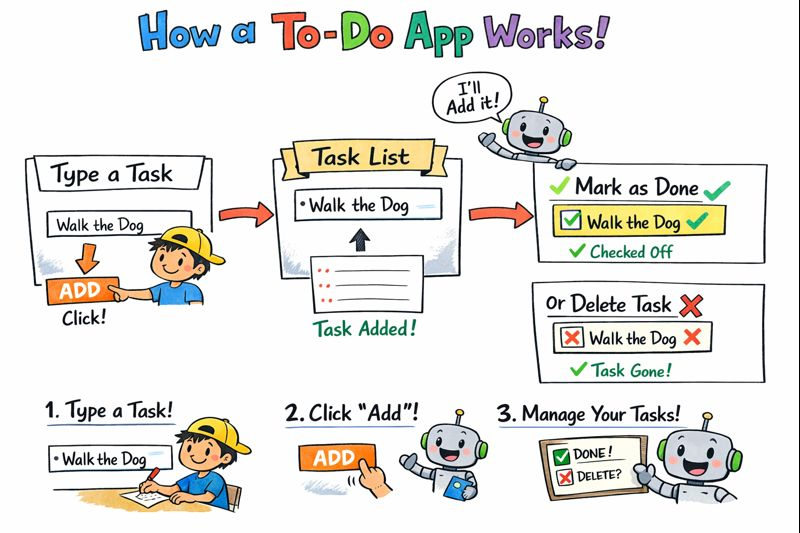
Build a simple To-Do list using JavaScript.

The application should allow users to manage daily tasks using a basic web interface.

alt text


✅ Requirements

  • An input field to type a task
  • A button to add the task
  • A list to display all added tasks

🧪 Exercises

Exercise 1: Add a Task

  • Allow the user to enter a task
  • Add the task to the list when the button is clicked

Exercise 2: Prevent Empty Tasks

  • Do not allow empty tasks to be added
  • Show a message if the input is empty

Exercise 3: Remove a Task

  • Each task should have a delete option
  • Clicking delete should remove the task from the list

Exercise 4: Mark Task as Completed

  • Clicking a task should mark it as completed
  • Completed tasks should look visually different

Exercise 5: Add Task Using Keyboard

  • Allow the user to add a task by pressing the Enter key

Exercise 6: Show Task Count

  • Display the total number of tasks
  • Update the count when tasks are added or removed

🎯 Goal

Complete this exercise using plain JavaScript (no frameworks).

If you can finish all tasks, you are ready to:

  • Build a React To-Do app
  • Manage state in frontend frameworks
  • Handle real user interactions

If you want to learn other concepts in JavaScript, below is the link from MDN.

MDN JavaScript Tutorials — structured from beginner basics to advanced topics, with examples and explanations. JavaScript guide (MDN) https://developer.mozilla.org/en-US/docs/Web/JavaScript